Back to articles

Linking a Git repository to your bot
April 20, 2025
Discord BOT
1. What is the Git integration?
The Git integration lets the panel automatically download your bot's files straight from GitHub every time the server starts. That way, you just push to the repository and restart the bot to apply updates.
2. Creating a Personal Access Token on GitHub
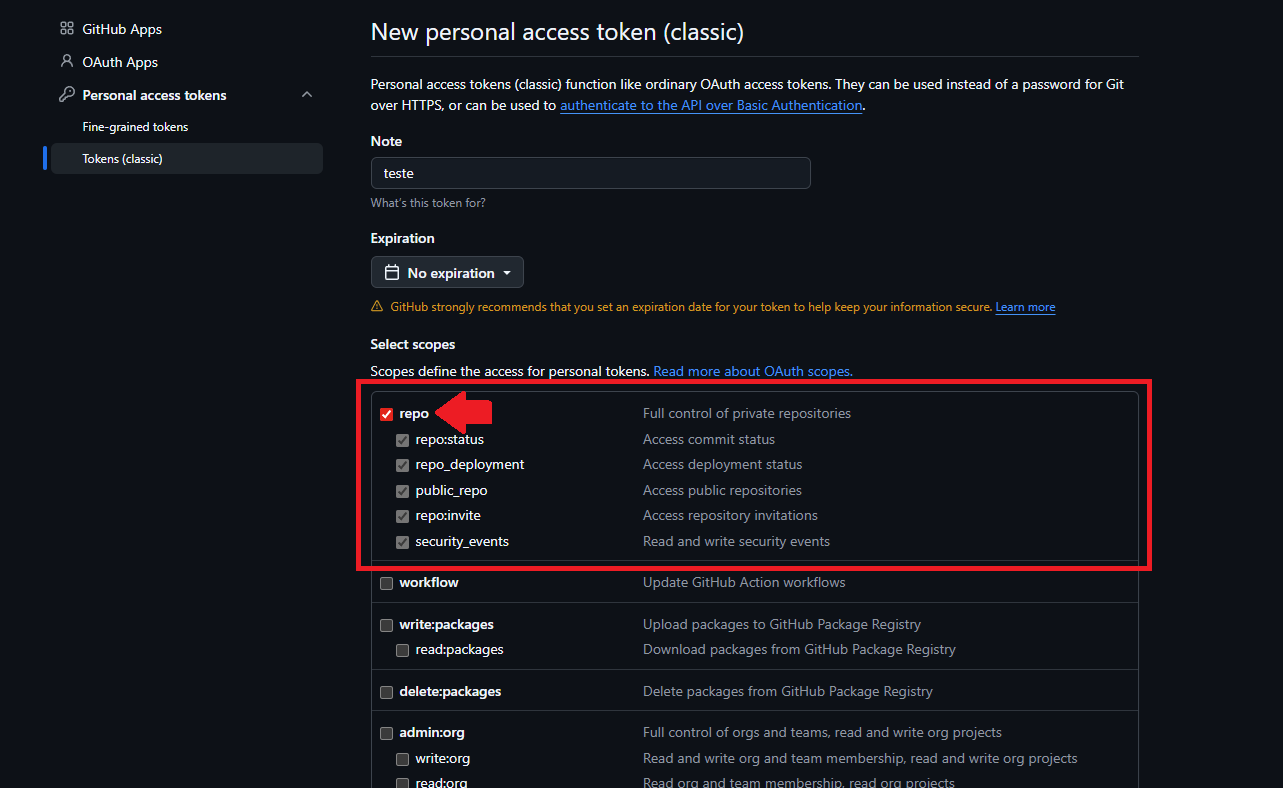
For private repositories, GitHub requires token authentication. Follow the steps below:
- Go to github.com/settings/tokens.
- Click Generate new token and select the Classic option.
- Give the token a name (e.g.
redhosting-bot) and check the repo scope.
- Click Generate token and copy the generated token — it's only shown once.
⚠️
Warning: Never share your token with anyone. It grants full access to your repositories.
3. Setting the variables in the panel
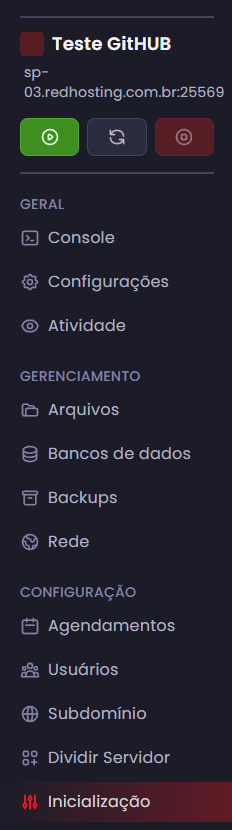
In the RedHosting panel, open your bot server and go to the Startup tab.
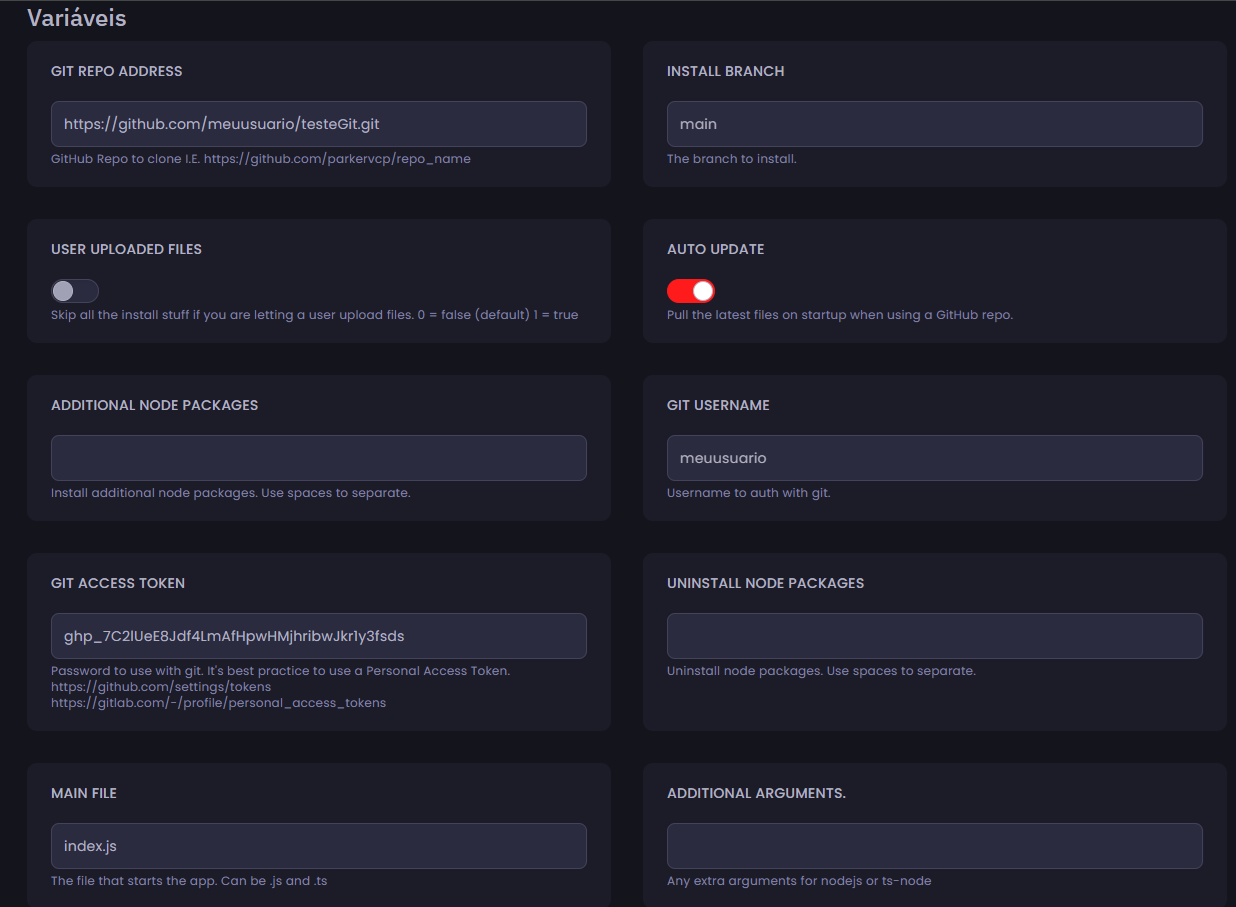
Fill in the fields as follows:
- Git Repo Address: your GitHub repository URL.
Example:https://github.com/youruser/your-bot.git - Install Branch: the name of the branch you want to use.
Example:main - Auto Update: enable this so the panel runs
git pullautomatically every time the server starts. - User Uploaded Files: keep this option disabled. If it's enabled, the Git update process is skipped.
- Git Username: your GitHub username.
Example:youruser - Git Access Token: paste the token generated in the previous step.
- Main File: your bot's main file name.
Example:index.js
4. Installing the server for the first time
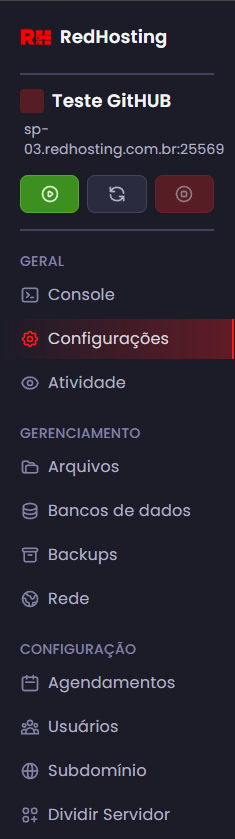
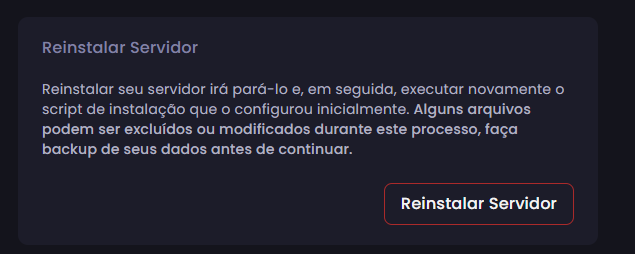
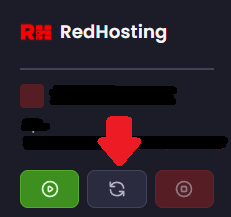
After filling in all fields, you need to reinstall the server so the panel clones the repository from scratch. Go to Settings in the server's sidebar.
- Click Reinstall Server and confirm.
- Wait for it to finish. The panel will clone all the files from your repository automatically.
ℹ️
Tip: By default, reinstalling doesn't delete existing files. If you want to start from scratch, also check Wipe Server before confirming.
5. Updating the bot via Git
With everything set up, the update flow is simple:
- Make your code changes and send them to GitHub with
git push. - In the panel, restart the bot's server.
- The panel will run
git pullautomatically and start the bot with the updated files.
ℹ️
Done! Your bot now stays up to date with your repository's code. If you need help, contact our support.
Frequently asked questions
Do I need a GitHub token for a public repository? +
No. The token is only required for private repositories.
Does the bot update by itself when I push? +
The files are downloaded on every startup. After pushing, restart the bot's server to apply the update.
Are my local files deleted during sync? +
Tracked files are replaced by the ones in the repository. Keep sensitive settings in environment variables, outside Git.