Back to articles
Setting Up Mods and Forge/Fabric
April 4, 2025
Minecraft
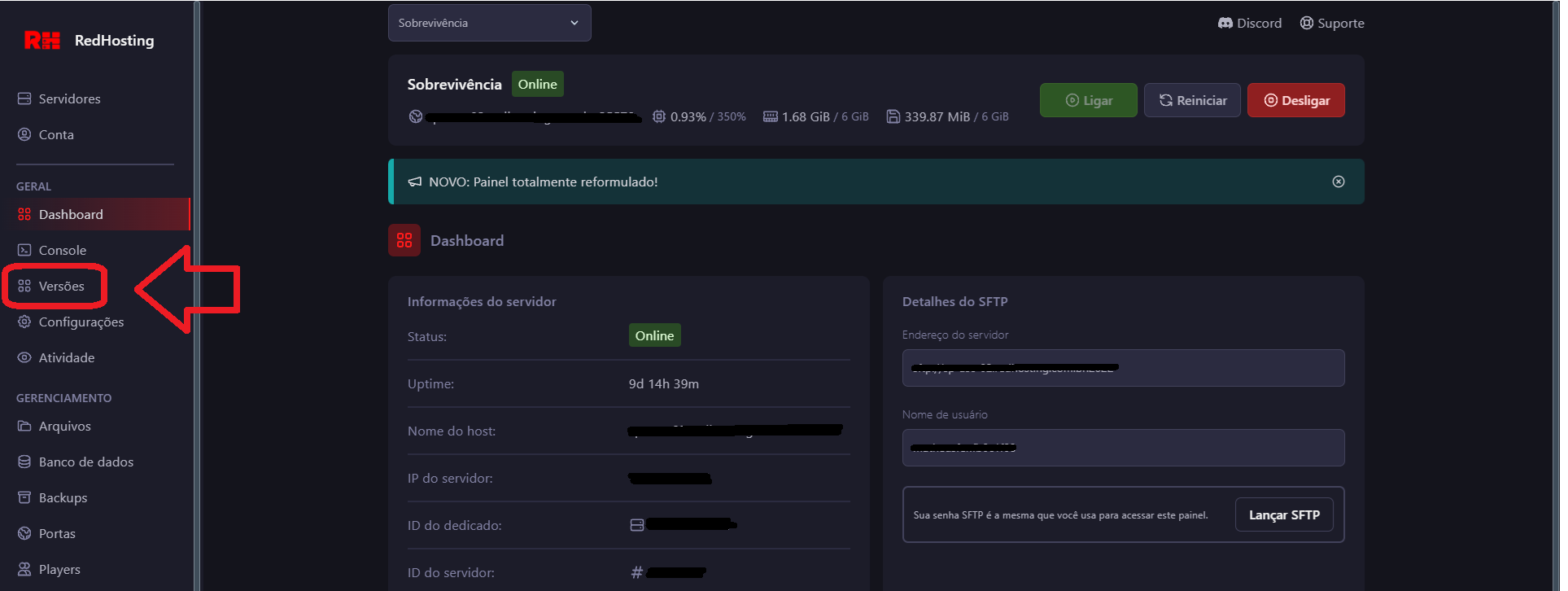
1. Open the RedHosting Control Panel
Open your server's control panel and go to the "Versions" tab ("Versões").
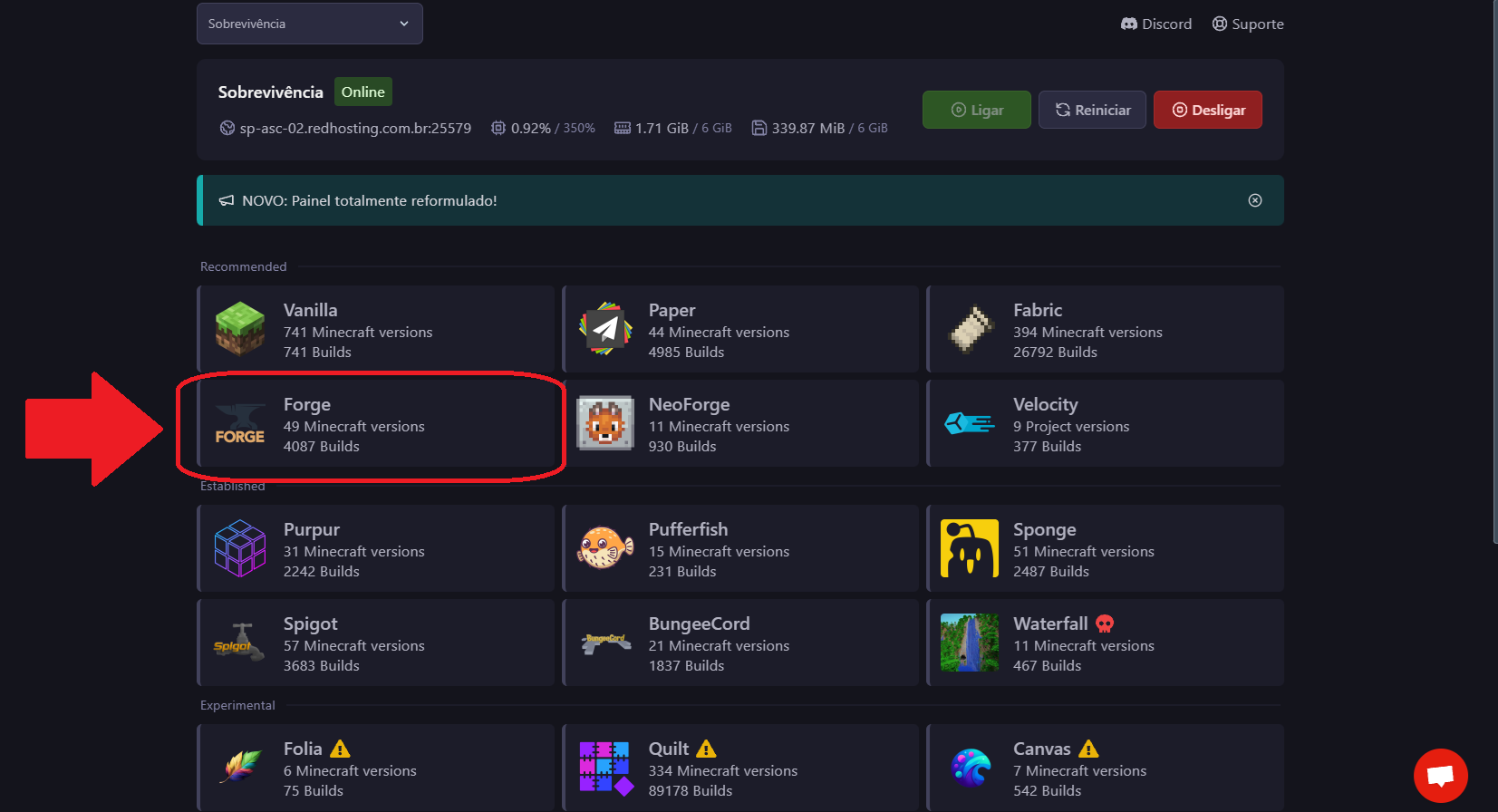
2. Choose Forge
- In the box labeled "TROCAR ENTRE MINECRAFT JAVA, BEDROCK E FORGE" (switch between Minecraft Java, Bedrock and Forge), click the Forge option.
- Click the "Não deletar arquivos" (don't delete files) button so it changes to "Deletar arquivos" (delete files).
- Then click the Install button to start installing Forge.
3. Choose the Forge version
After Forge is installed, go to the control panel's Startup page.
- In the "Forge version" field, select the version you want:
Example: 1.16.5 - 36.2.42<Minecraft version>-<Forge version>
5. Start the server
ℹ️
Tip: After the reinstall, you can start the server normally.
6. If you get an EULA error
If the server shows an error about the EULA (end-user license agreement), you'll need to edit the eula.txt file:
- Open the eula.txt file in the server directory.
- Find the line that says eula=false and change it to eula=true.
- Save the file.
Now you can start the server normally!
7. Adding mods
- To add mods, go to the mods folder on your server (if it doesn't exist, create it).
- Put the mod files (.jar) in that folder.
- Restart the server so the mods are loaded.
Done! Your server is now set up with Forge and mods, and you can customize your game experience even further.
If you run into problems or have questions, our team is here to help!
Frequently asked questions
Can I use mods and plugins at the same time? +
Only with hybrid servers such as Mohist or Magma, and they're less stable. In most cases, pick one of the two paths.
Do players need to install the mods too? +
Yes. Unlike plugins, mods run on both sides: anyone who joins without the same mods and versions gets disconnected.
Forge or Fabric? +
Forge has the larger catalog of big and older mods. Fabric is lighter and updates faster to new versions. What decides it is which one the mods you want require.